Import from FTP
Overview:
You can import samples or files directly from your FTP server into the Basepair platform. This feature allows you to easily transfer data for analysis without manual uploads.
-
Pre-requisites
Before starting, ensure you have:
- Valid FTP access credentials (FTP host, username, and password).
- Read permissions for the source directories and files on the FTP server.
- A publicly accessible FTP server that allows connections from the Basepair platform.
- Open firewall ports for FTP (default port: 21) and passive data transfer.
- Files can be in any format supported by your Basepair instance or project pipelines.
-
Import Workflow Overview
-
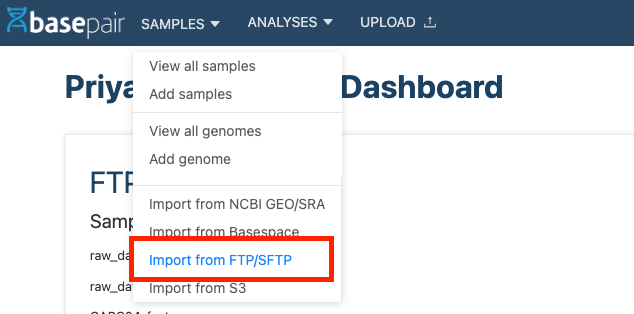
Step 1: Navigate to Import from FTP
- Go to the Samples dropdown menu.
- Click on Import from FTP.
-
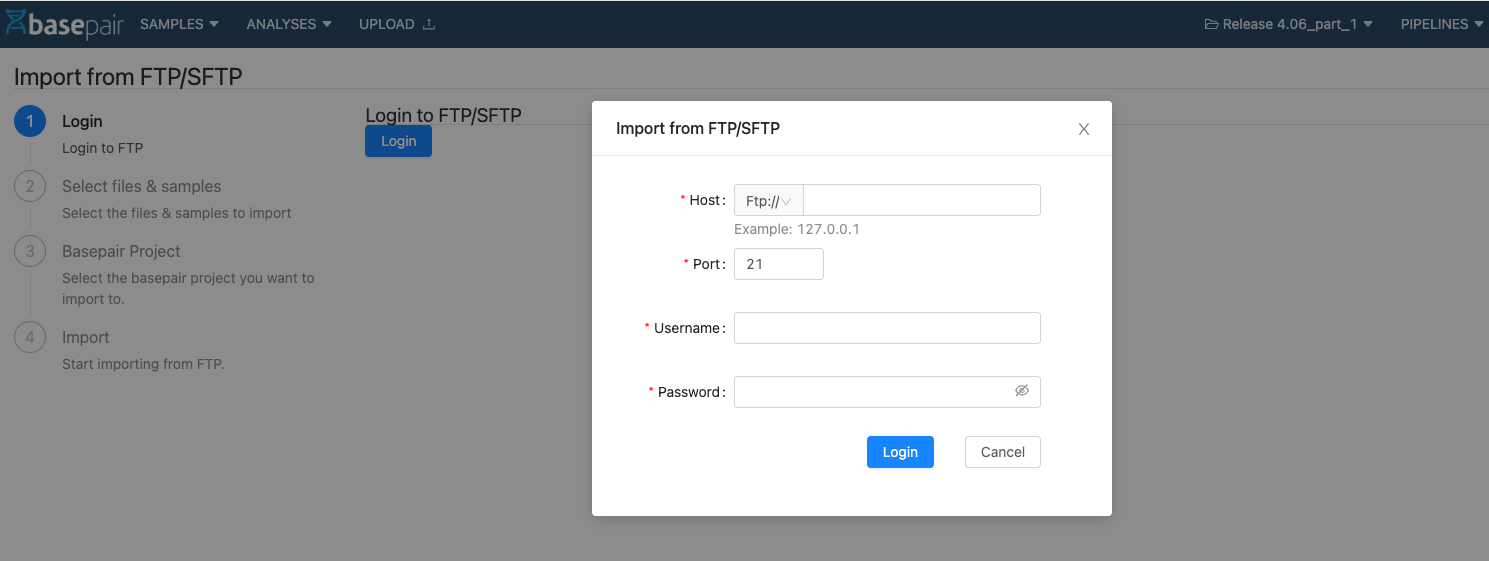
Step 2: Log in to FTP
- Enter your FTP host, username, and password
- Click Login.
-
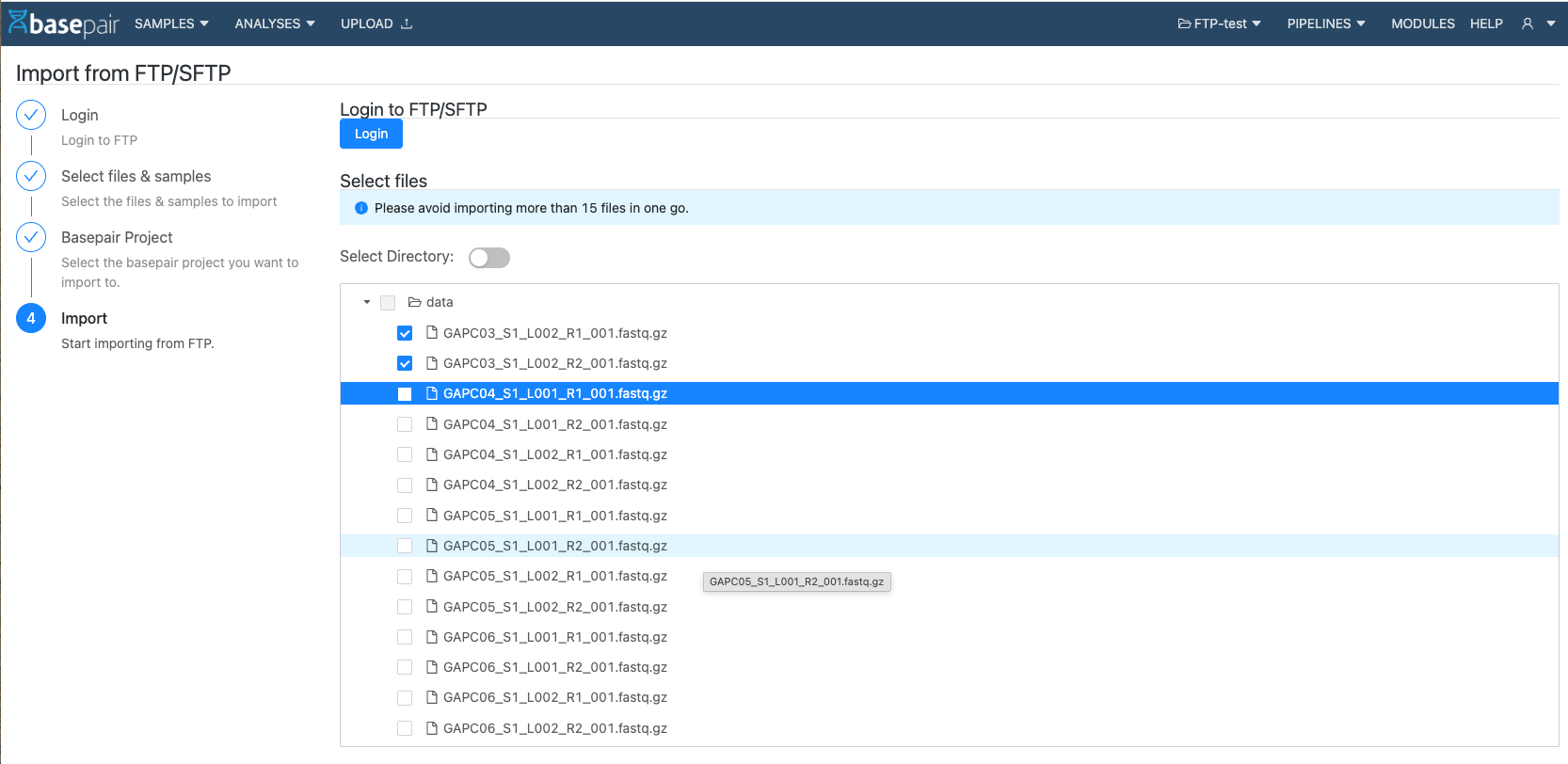
Step 3: Select Files to Import
You can import individual sample files or an entire directory.
a. Import sample/files
- Browse and select the sample files to import.
- Choose a grouping option:
- Automatic grouping
- Group into one sample
- No grouping
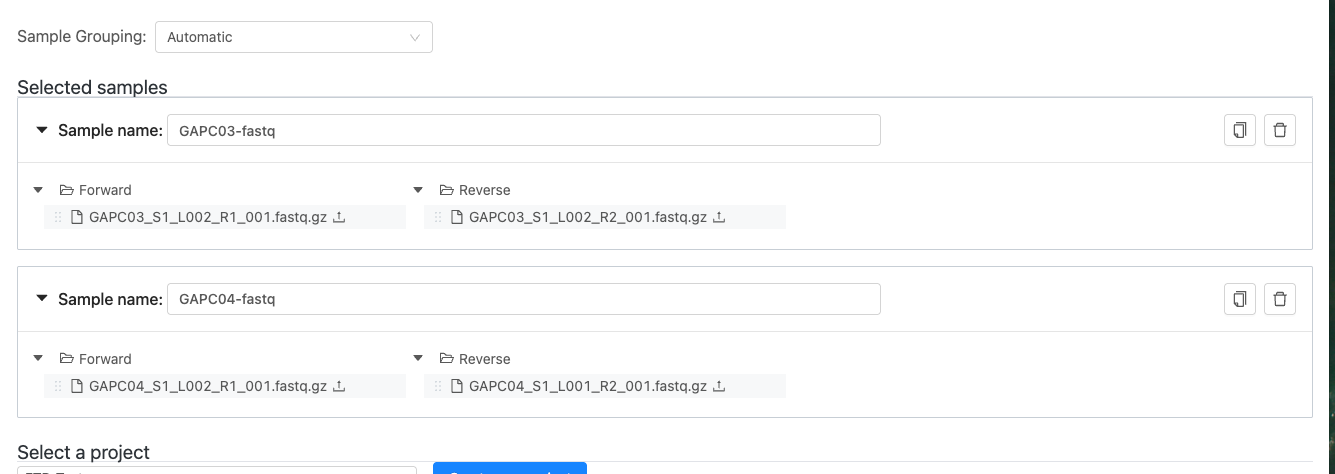
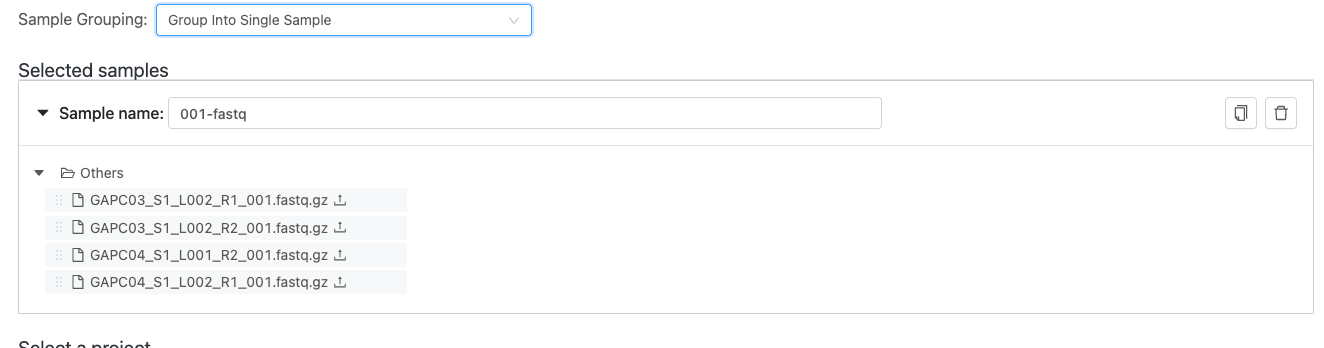
- Select the Project where the samples should be imported.
- To create a new project, click Create new project.
- Add metadata as required.
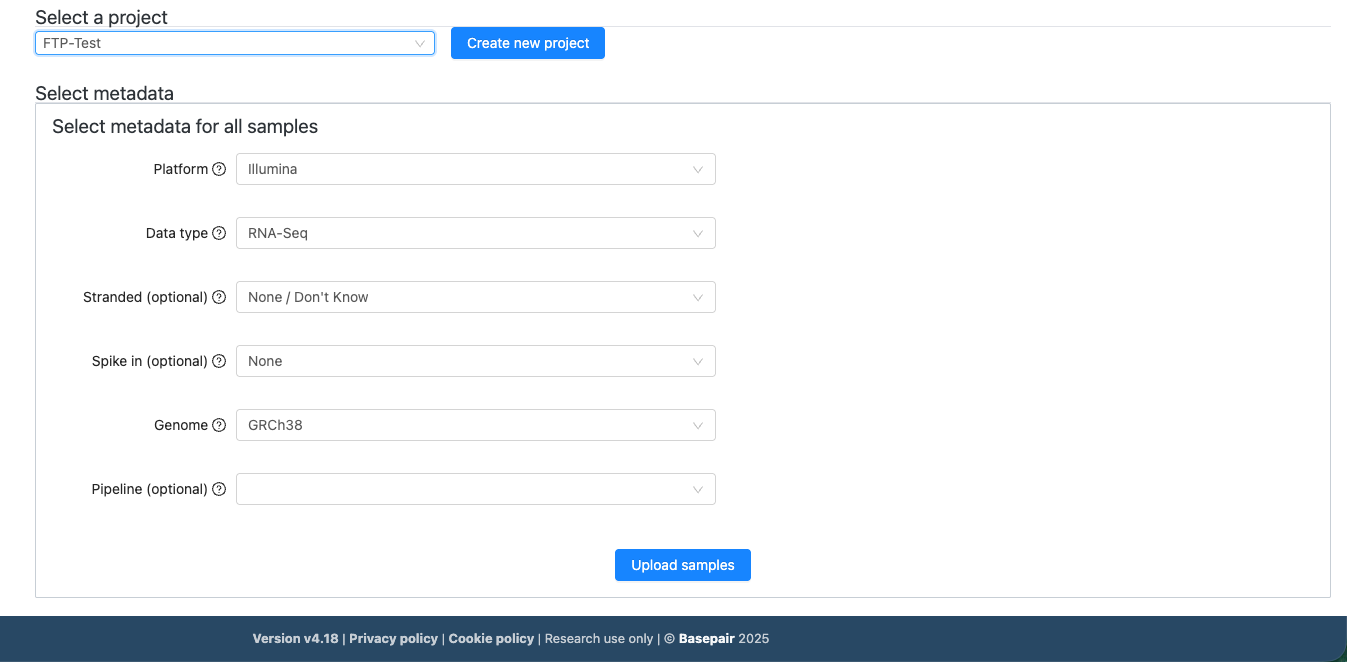
- Click “Upload samples” to start the upload process.
b. Import Directory
- Enable the toggle for Select Directory.
- Select one directory at a time for import.
Note: Sample grouping is not available when importing a directory.
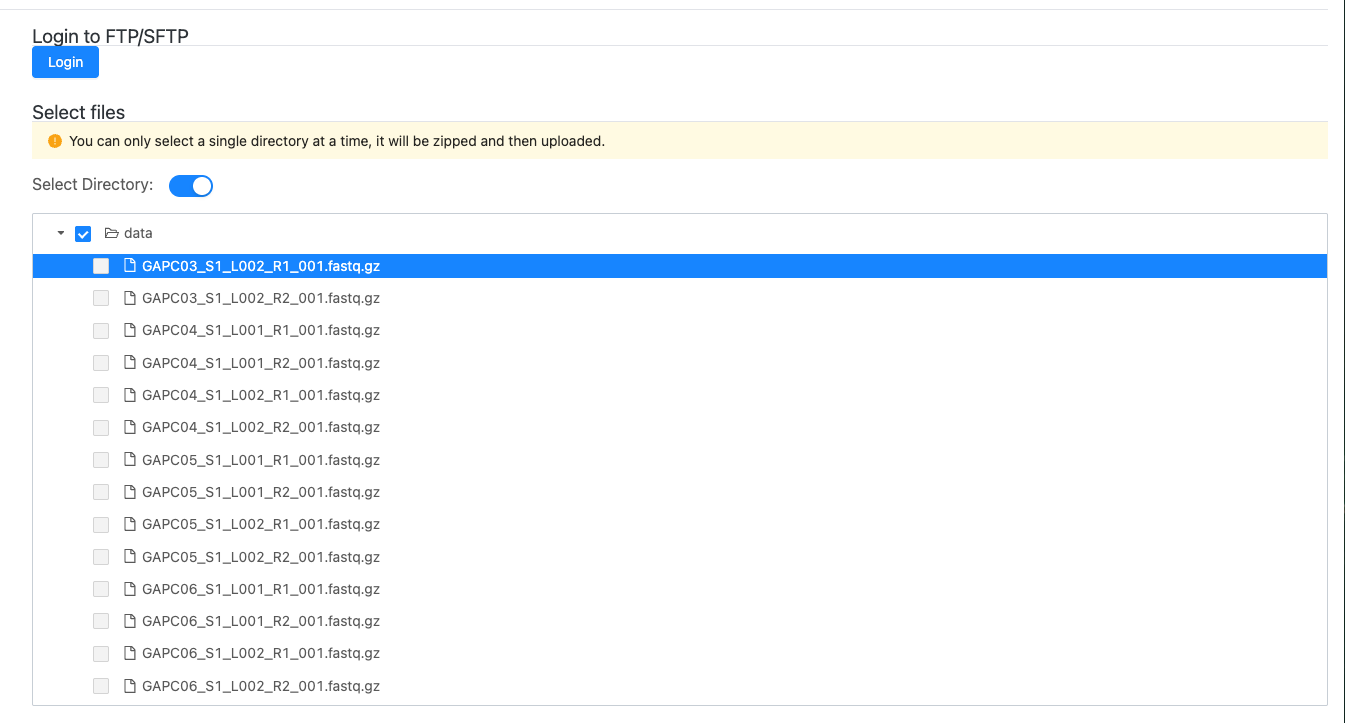
- Select metadata and click “Upload samples” to start upload process.
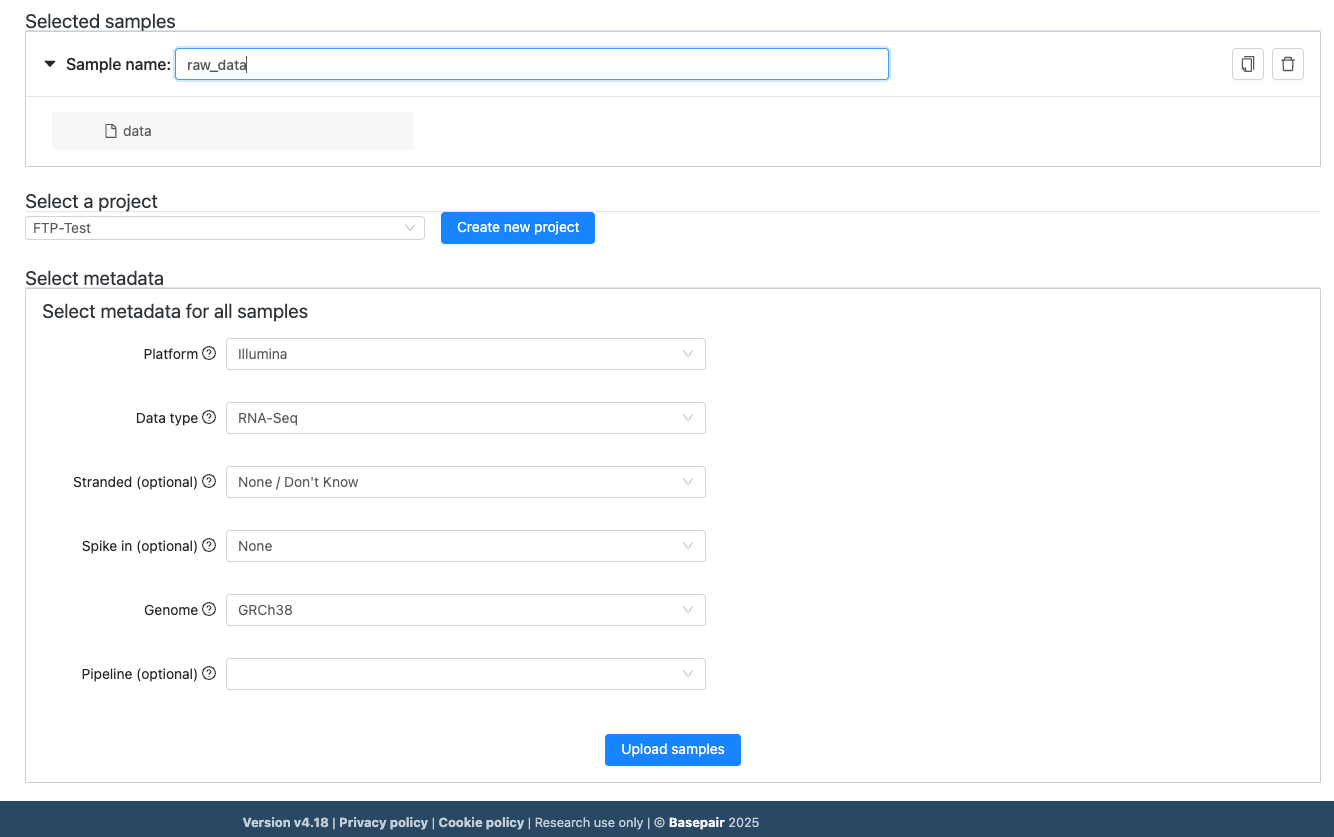
- Browse and select the sample files to import.
-
Step 4: Start the Analysis
Once the upload starts, the pipeline will automatically run for approximately 30 minutes. After the upload is complete:
- Go to the Reports section.
- You will see the uploaded files grouped according to your chosen grouping option.
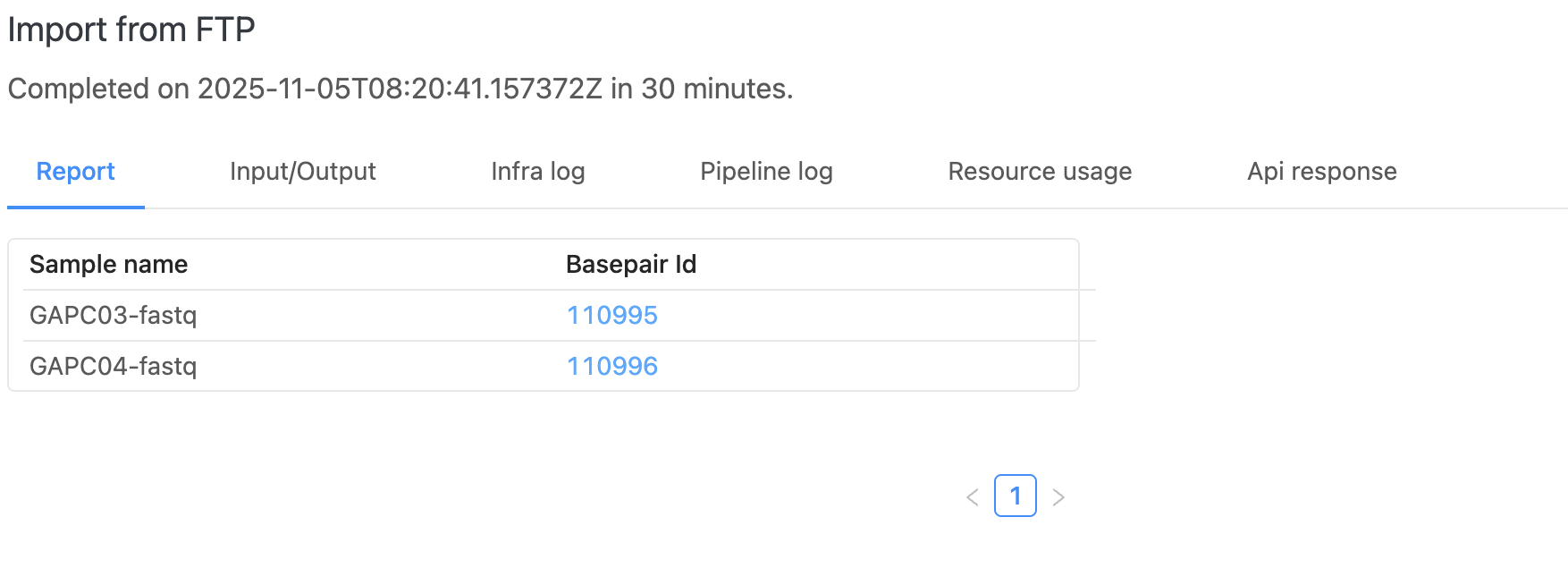
- Click on the Basepair ID to trigger the analysis.
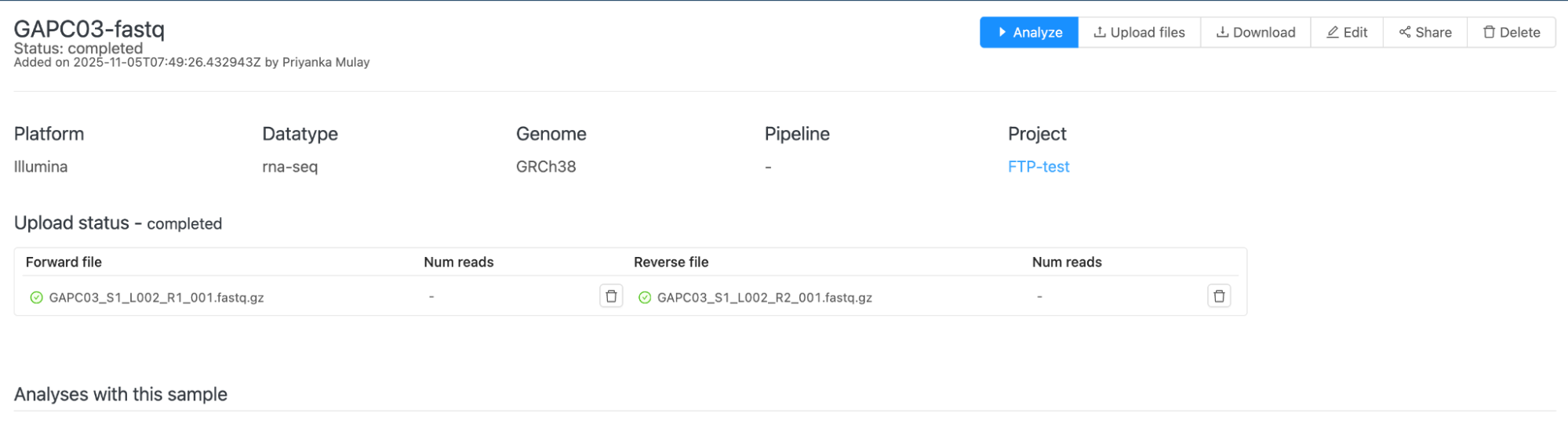
- Click Start Analysis it will redirect to the new analysis page to begin processing your samples.
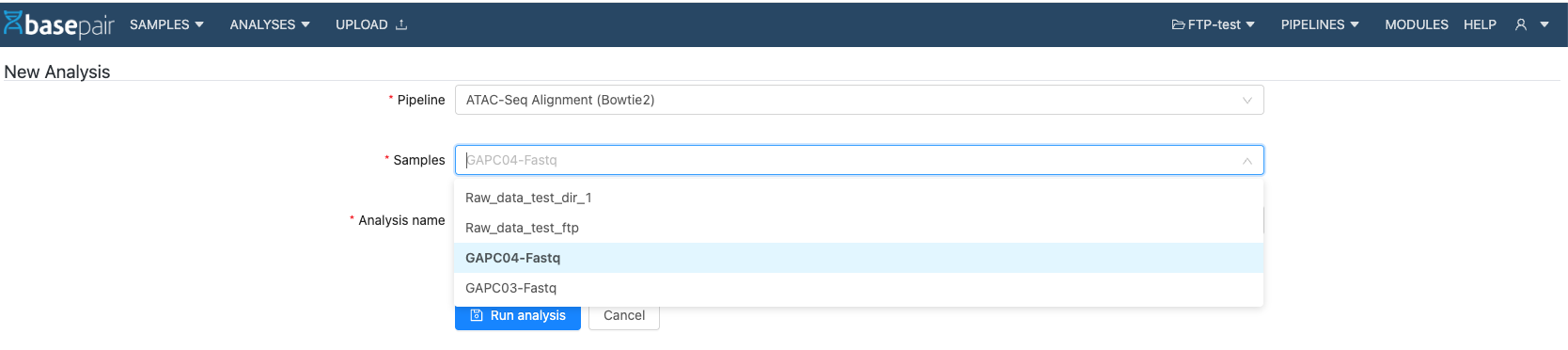
- Select the Pipeline and the samples.
- Click on “Run analysis”
-