Basespace Integration
This guide walks you through the process of linking your Basespace account with your Basepair account, allowing you to directly import sequencing data from Basespace into your Basepair workspace.
Overview of the Process
-
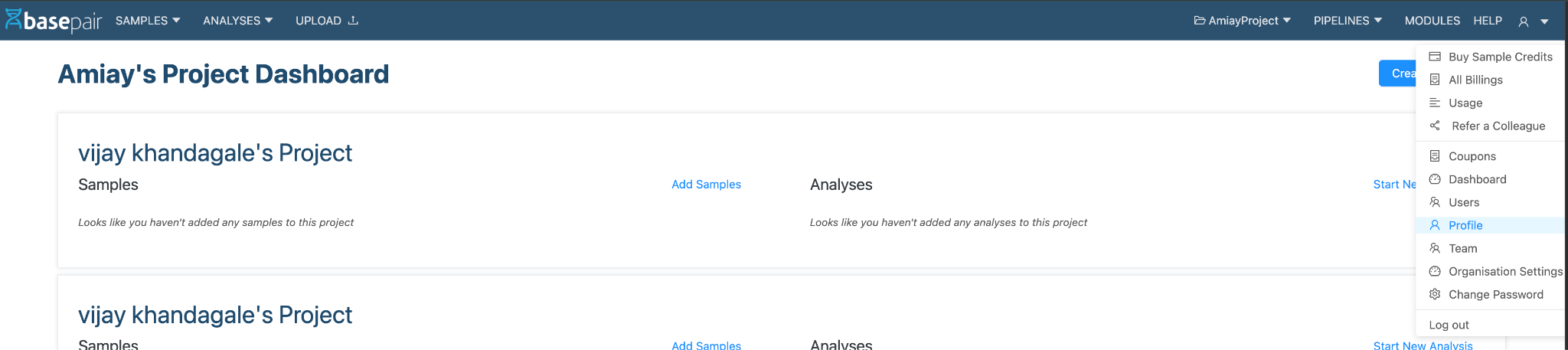
Navigate to User Menu → Profile.
-
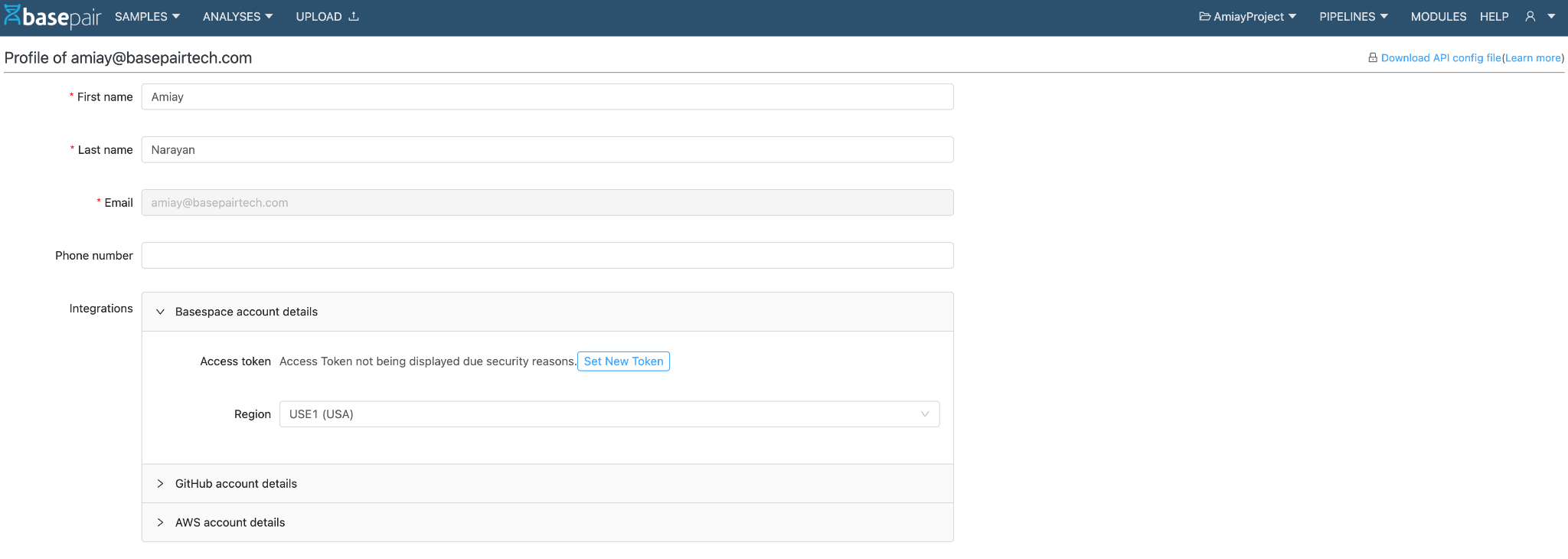
Click on the expandable section: Basespace Account Details.
-
Paste the access_token that you have with you (explained below in Getting the Access Token).
-
Select the correct Region for your Basespace account.
-
From the left navigation menu, go to Samples → Import from Basespace.

-
Once connected, follow the Importing from Basespace User Guide to begin importing your data.
Getting Access Token (Step 3 in the flow)
While there could be a few ways to get the access token, this guide uses the cleanest approach—Basespace CLI.
Step 1: Install the Basespace CLI
Run the following commands based on your operating system.
For Linux
wget "https://launch.basespace.illumina.com/CLI/latest/amd64-linux/bs" -O $HOME/bin/bs
chmod u+x $HOME/bin/bs
For macOS
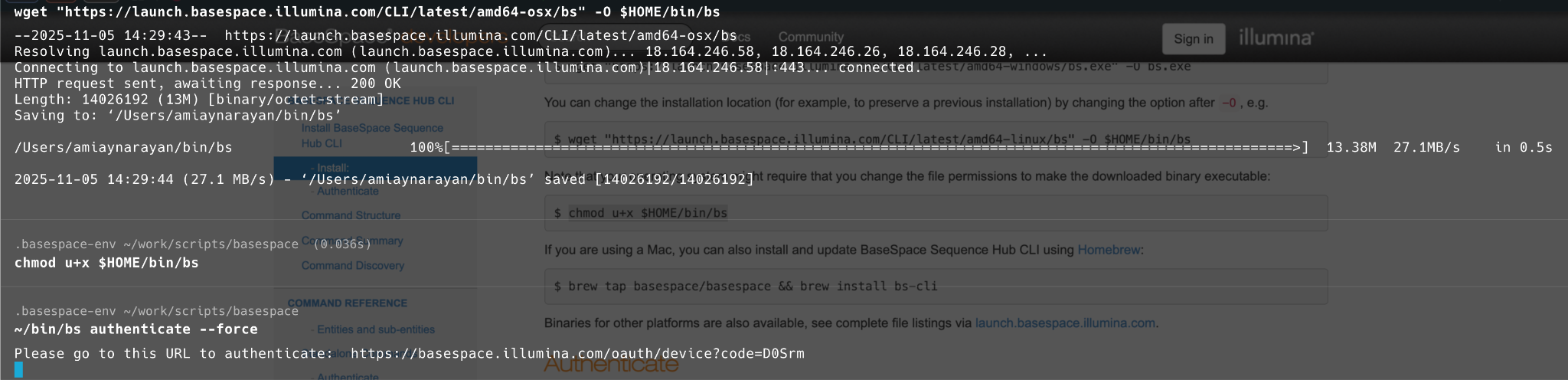
wget "https://launch.basespace.illumina.com/CLI/latest/amd64-osx/bs" -O $HOME/bin/bs
chmod u+x $HOME/bin/bs
echo 'export PATH="$HOME/bin:$PATH"' >> ~/.zshrc
source ~/.zshrc
For Windows
wget "https://launch.basespace.illumina.com/CLI/latest/amd64-windows/bs.exe" -O bs.exe
Alternate consolidated commands (with prompts):
# Linux
$ wget "<https://launch.basespace.illumina.com/CLI/latest/amd64-linux/bs>" -O $HOME/bin/bs

# MacOS
$ wget "<https://launch.basespace.illumina.com/CLI/latest/amd64-osx/bs>" -O $HOME/bin/bs
$ chmod u+x $HOME/bin/bs
$ echo 'export PATH="$HOME/bin:$PATH"' >> ~/.zshrc
$ source ~/.zshrc

# Windows
$ wget "<https://launch.basespace.illumina.com/CLI/latest/amd64-windows/bs.exe>" -O bs.exe
Step 2: Authenticate Your Device
Run the following command to link your Basespace account:
bs authenticate
If you’ve used the CLI before, you might need to add the --force flag:
bs authenticate --force
You’ll receive a URL and a code in the terminal, similar to the example below:
Please go to this URL to authenticate: https://basespace.illumina.com/oauth/device?code=6Cesj
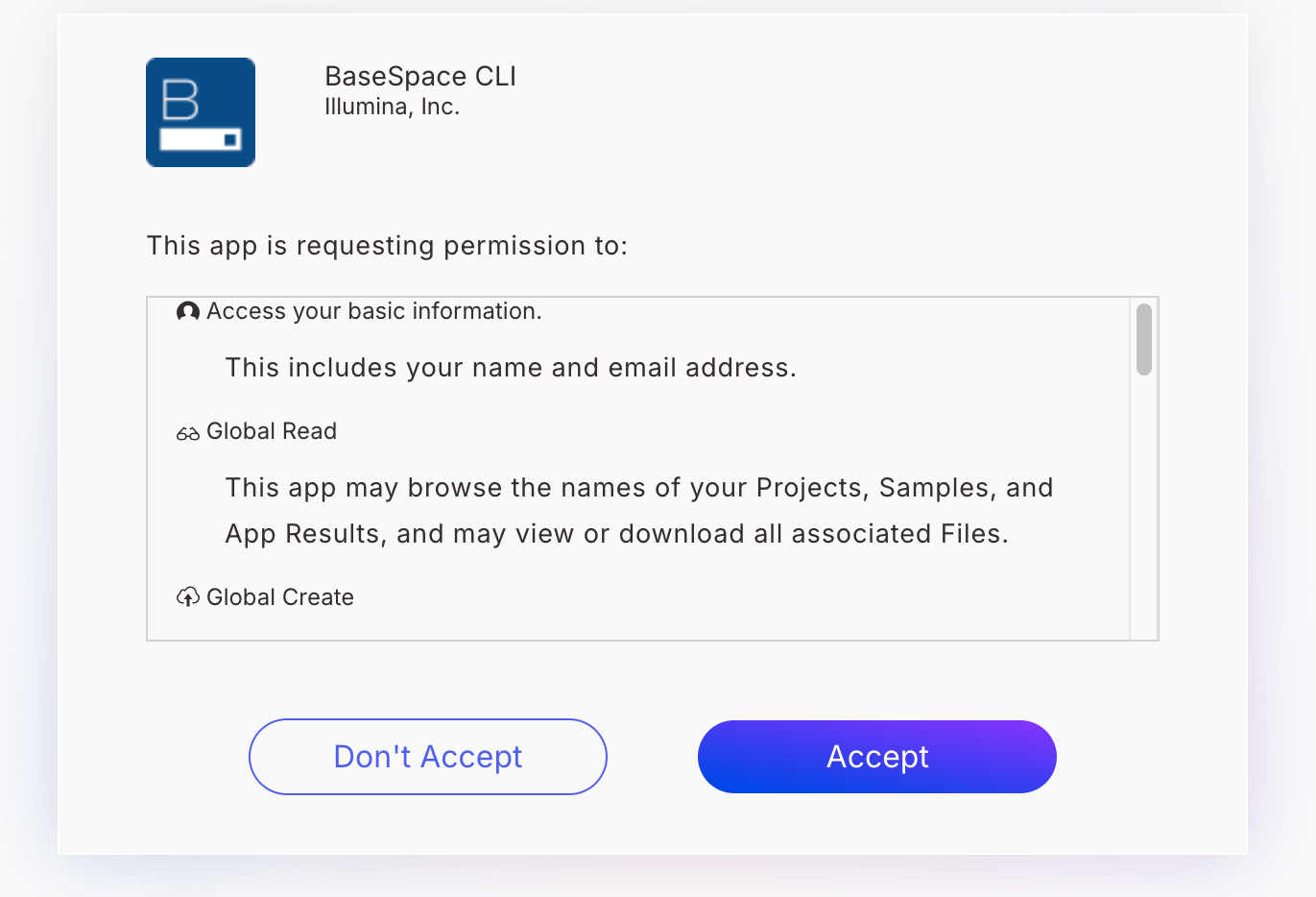
Open the provided URL in your browser, log in to your Basespace account, and click Accept to authorize access.
Step 3: Get Your Access Token
After successful authentication, run the following command to view your credentials:
cat $HOME/.basespace/default.cfg
You’ll see an output similar to this—pay attention to apiServer and the accessToken:
apiServer = https://api.basespace.illumina.com/
accessToken = <your_access_token_here>
Copy the accessToken value and paste it into the Access Token field in Basepair (as shown in Step 3 of the main flow).
